Subscribe
Users can subscribe to the views where they already have access to receive them on a regular basis according to the schedule and format of their choice.
-
In the Settings menu (right panel), click
 and select Subscribe. Tip
Alternatively, this can also be accomplished by right-clicking a view in the Data Models and Views tab and selecting Subscribe.
- The Subscribe All Documents dialog box is displayed. Enter the parameters described below in the appropriate tabs (General, Other Recipients, Email, Schedule).
- Click Subscribe.
Existing scheduled views can be unsubscribed by right-clicking on a View in the Data Models and Views tab and selecting Subscribe then Unsubscribe.
| Parameter | Description |
|---|---|
| General |
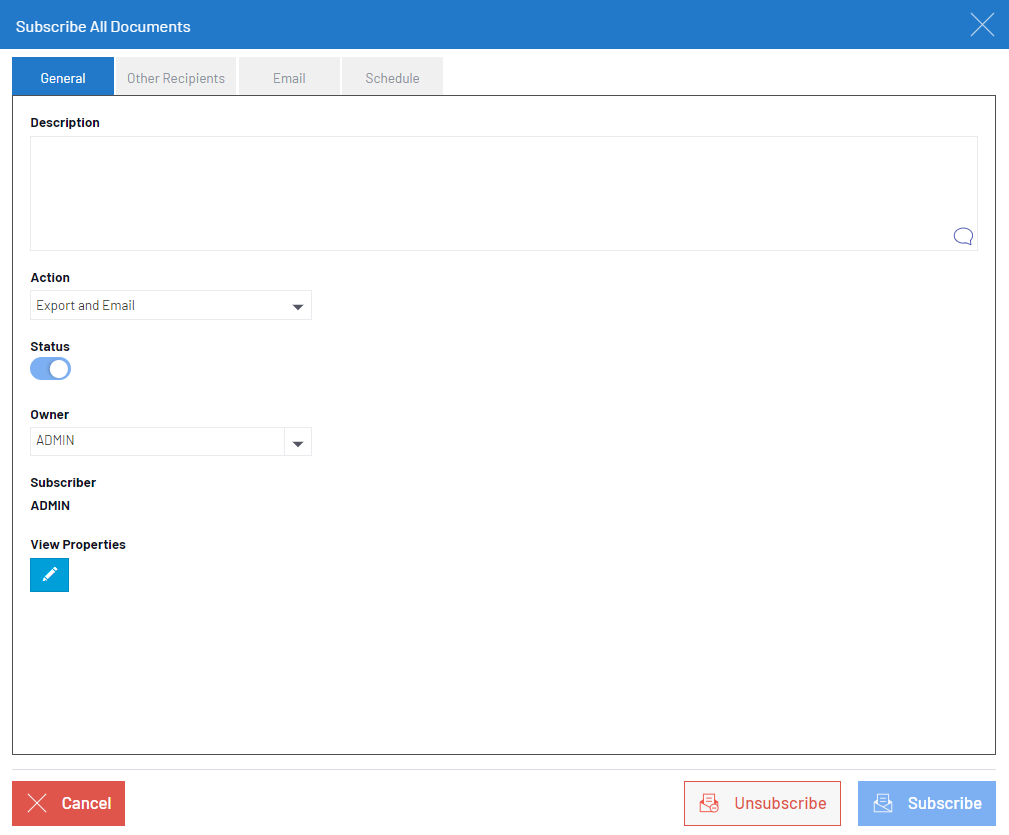
The General tab is used to define specific features.
|
| Description | Identifies your current subscription. It will also be displayed to the administrator in the main Scheduler. |
| Action | Determines if you want to receive the view by email or archive it in a folder. |
| Owner | Select the user. |
| View Properties | Opens a new window to define the format that will be generated such as: PDF, Excel, etc. |
| Other Recipients |
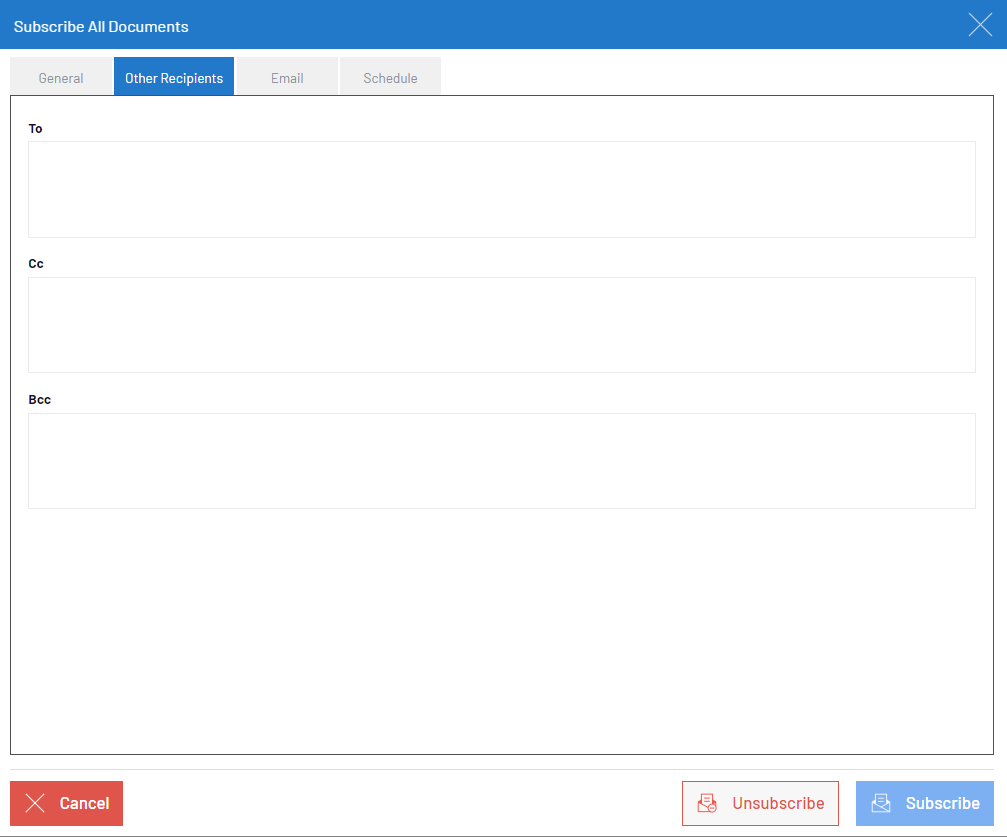
The Other Recipients tab allows you to add more recipients to the view subscription in addition to the owner.
|
|
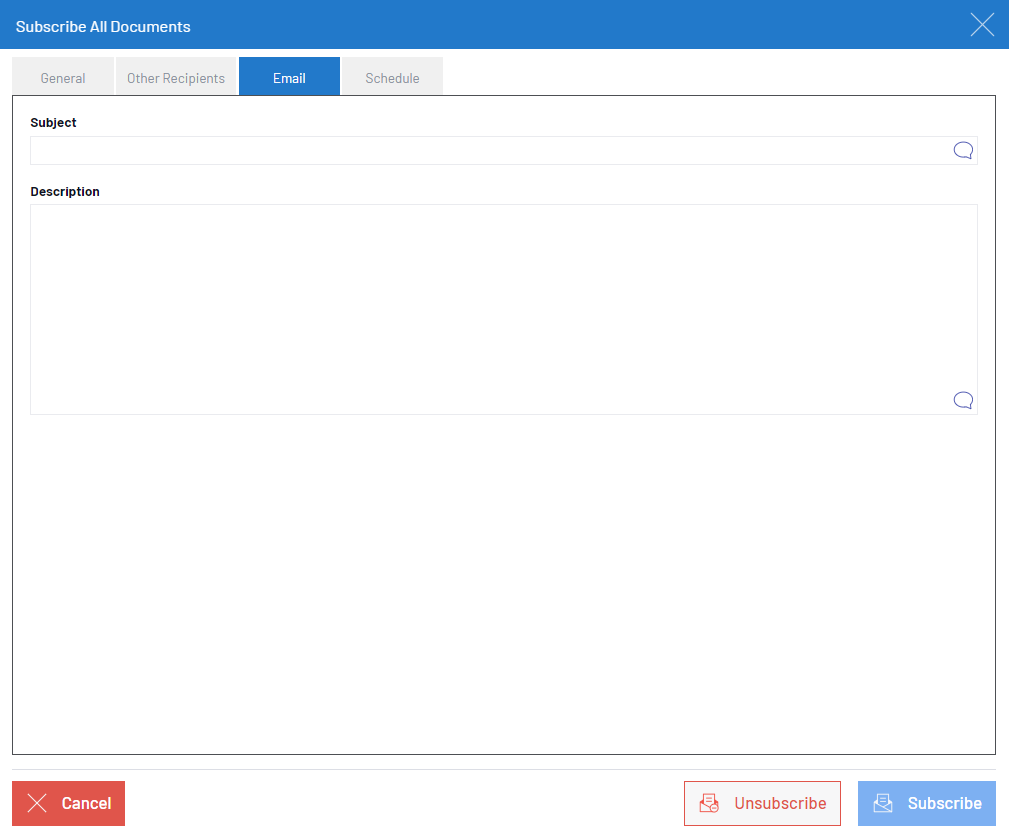
The Email tab is used to create a template for automatic emails; you can write a title in the Subject field and a detailed description for the email template.
The |
|
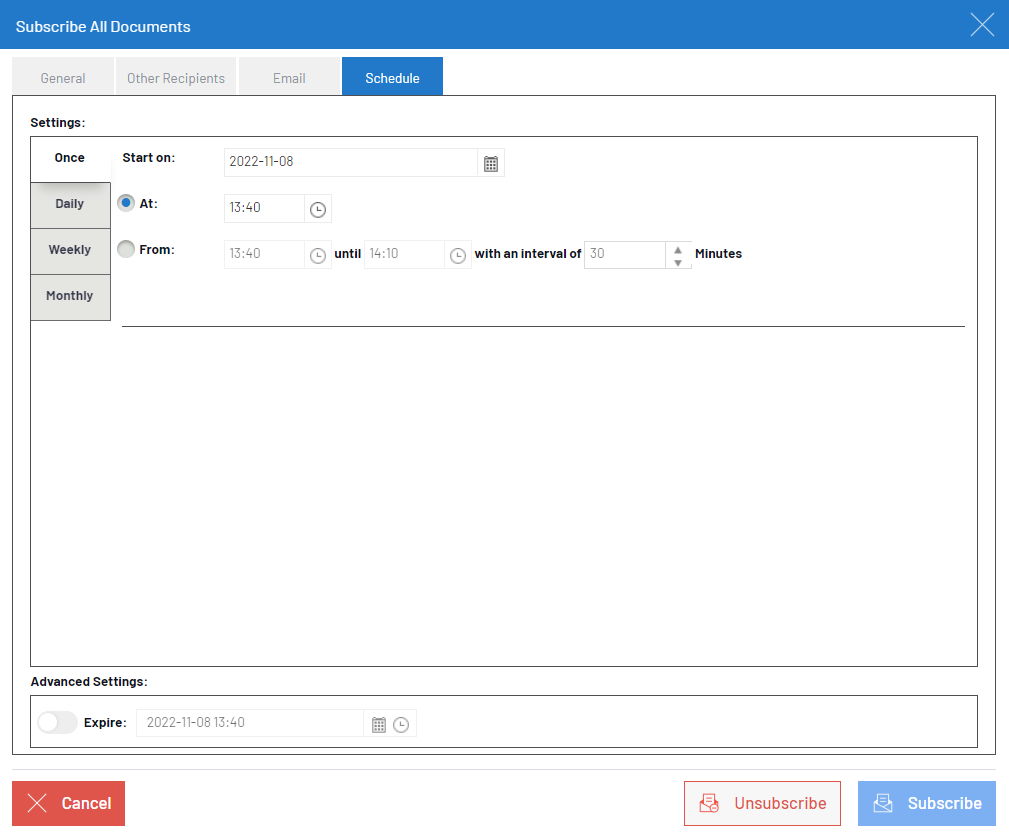
| Schedule |
The Schedule tab is used to set a schedule to run, save, and email the Views. There are various options to define the frequency to run the job as well as set an expiration date.
|
 located on the right allows the user to create multiple versions of the subject and
description in each language defined.
located on the right allows the user to create multiple versions of the subject and
description in each language defined.