Acumatica Data Source
Acumatica is a cloud-based ERP platform that manages your financial, operational, and business data. By connecting Acumatica, you can use that data directly in your views and dashboards, keeping everything up to date without manual exports or data preparation.
Nectari supports two ways to authenticate with Acumatica. Basic authentication uses a username and password and is the simplest setup, with no extra configuration in Acumatica. OAuth 2.0 uses a more secure, token-based connection and is recommended when your Acumatica environment supports it. Choose the method that matches your Acumatica environment.
Configure Basic Authentication
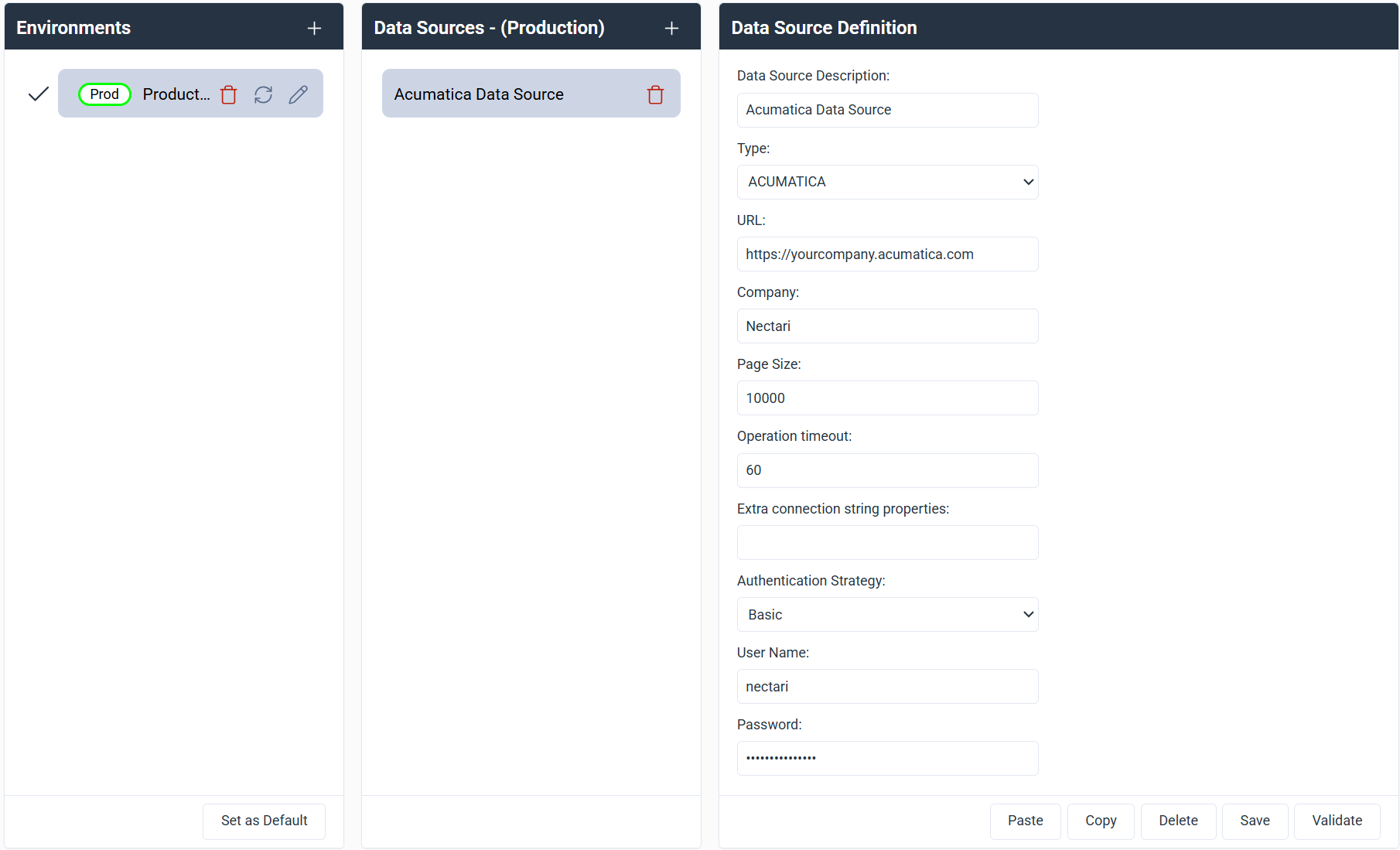
Use Basic authentication when connecting with a standard Acumatica username and password. This is the simplest way to connect and requires no additional setup in Acumatica.
| Field | What to enter |
|---|---|
| Data Source Description | Unique name for this data source. Example: Acumatica Data Source. |
| Type | Select Acumatica. |
| URL | Base URL of your Acumatica site. Example: https://yourcompany.acumatica.com. |
| Company | Name of the Acumatica company you want to connect to. |
| Page Size | Maximum number of records returned per request. Default: 10000. |
| Operation timeout | Maximum time in seconds allowed for each request. Default: 60. |
| Extra connection string properties | Optional. Additional connection string parameters required by your provider. |
| Authentication Strategy | Select Basic. |
| User Name | Login account for authenticating with Acumatica. |
| Password | Password for this account. |
Example setup
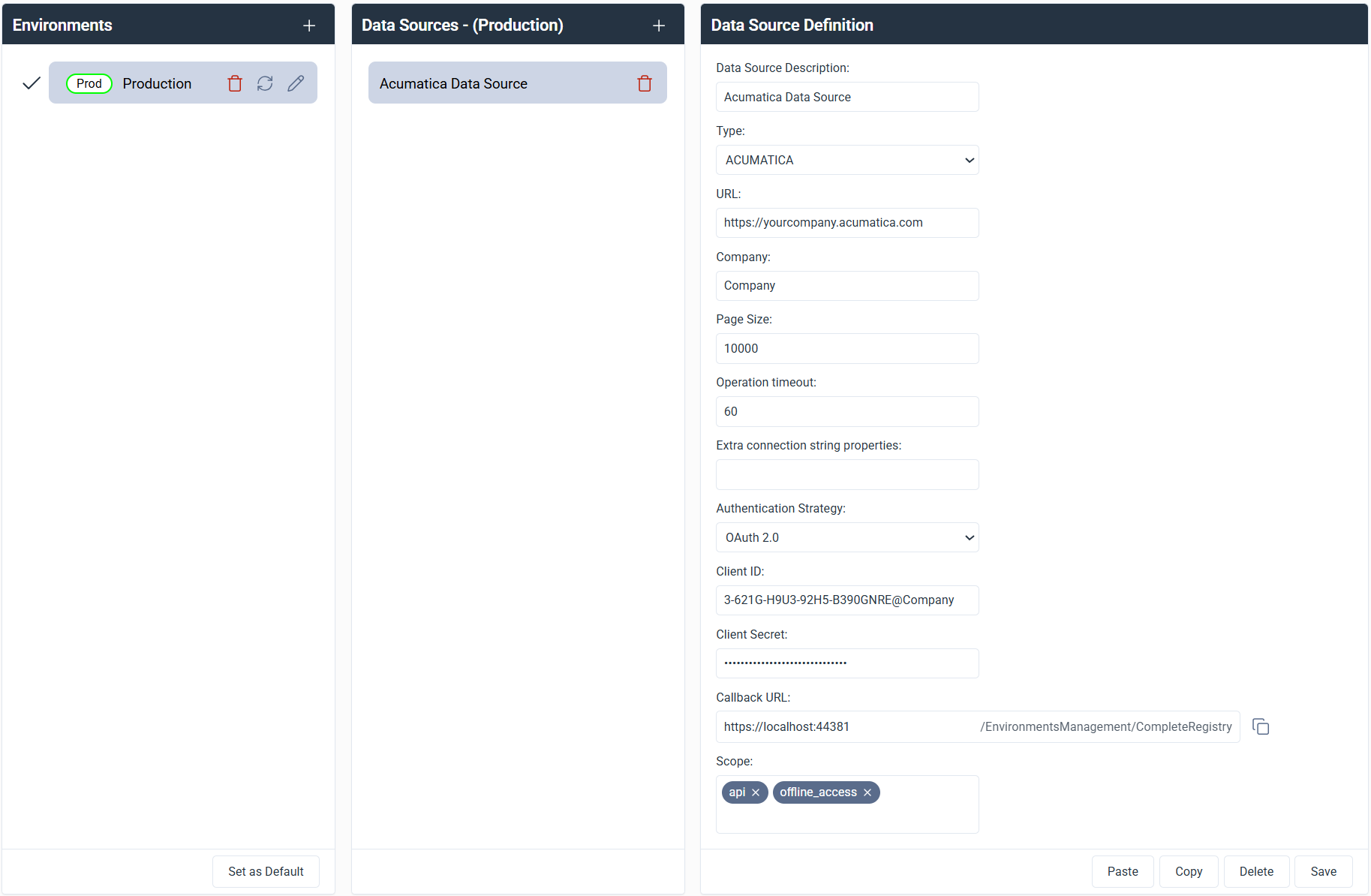
Configure OAuth 2.0 Authentication
Use OAuth 2.0 when connecting through a registered application with delegated access. This method is more secure than Basic authentication and is recommended when your Acumatica environment supports it. Before filling in the fields below, register an application in Acumatica to obtain your Client ID and Client Secret.
| Field | What to enter |
|---|---|
| Data Source Description | Unique name for this data source. Example: Acumatica Data Source. |
| Type | Select Acumatica. |
| URL | Base URL of your Acumatica site. Example: https://yourcompany.acumatica.com. |
| Company | Name of the Acumatica company you want to connect to. |
| Page Size | Maximum number of records returned per request. Default: 10000. |
| Operation timeout | Maximum time in seconds allowed for each request. Default: 60. |
| Extra connection string properties | Optional. Additional connection string parameters required by your provider. |
| Authentication Strategy | Select OAuth 2.0. |
| Client ID | Client ID generated when you registered the application in Acumatica. |
| Client Secret | Client secret generated with the client ID. |
| Scope | Required scopes. Defaults: api and offline_access. |
| Callback URL | Automatically generated by Nectari. Copy this URL and paste it into your Acumatica application. |
Get the Client ID and Client Secret
To connect using OAuth 2.0, you first need to register a connected application in Acumatica. This generates the Client ID and Client Secret required by Nectari.
- In Acumatica, select Integration. If not visible, click More Items.
- Under Preferences, select Connected Applications.
- Select the + icon to add a new record.
- In Client Name, enter
OAuthor another unique name. - In Flow, select Authorization Code.
- Click Save. The Client ID is generated automatically.
- Open the Secrets tab, then select Add Shared Secret.
- Enter a description for the secret.
- Copy the value shown in the Value field and store it securely. You will not be able to view it again after saving.
- Click Ok.
Add the Callback URL in Acumatica
Once you have your Client ID and Client Secret, register the Callback URL from Nectari in Acumatica to complete the OAuth 2.0 setup.
- In Acumatica, select Integration. If not visible, click More Items.
- Under Preferences, select Connected Applications.
- In Client ID, select the connected application you created earlier.
- Open the Redirect URIs tab.
- Select the + icon to add a row.
- In Nectari, copy the full Callback URL from the data source definition panel.
- Paste the URL into the new row in Acumatica.
- Click Save.
Example