Project Cost Forecast
The Project Cost Forecast template revises project budget quantities, amounts, and completion percentages directly in Acumatica. Use it for construction estimate to complete updates, revised task budgets, project cost reforecasting, and ongoing percentage complete tracking. It uses the NECWRITEBACK formula, generated with the Writeback Wizard, to send changes from your workbook back to Acumatica.
Projects with Change Order Workflow enabled do not allow revised quantities or revised amounts to be updated through this template.
Typical workflow
- Select the Project in the header to load its budget lines and summary information.
- Review the project type, description, dates, currency, and financial summary.
- Select Initialize to create a working copy with static extracted data.
- Update the editable green columns in the project grid.
- Review revised quantities, revised amounts, variances, and completion percentages.
- Select Push to Acumatica to write the revised values to Acumatica.
- Select Reset before preparing another project cost forecast.
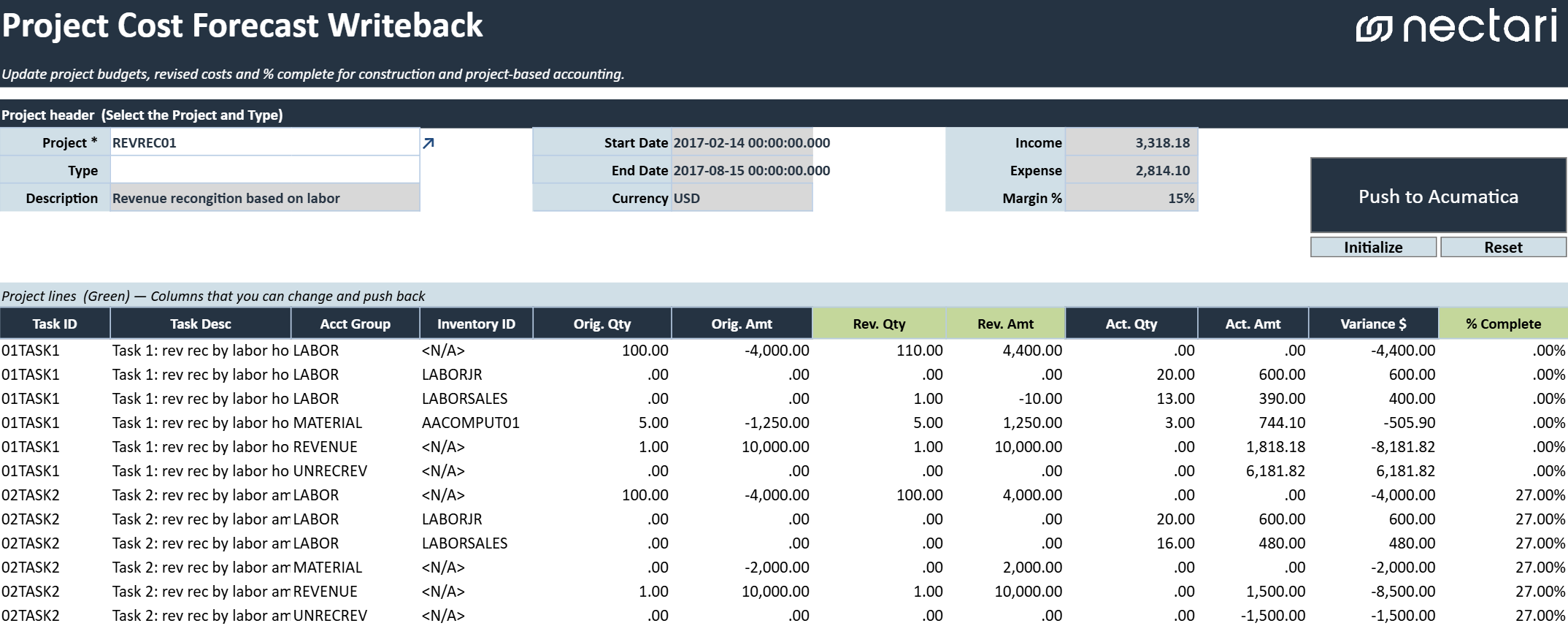
Project header
Identifies the project and its key information.
| Field | What to select |
|---|---|
| Project | Project whose budget lines will be reviewed and updated. |
| Type | Project type associated with the selected project. |
| Description | Description of the selected project. |
| Start Date | Project start date. |
| End Date | Project end date. |
| Currency | Currency used by the project. |
| Income | Total project income. |
| Expense | Total project expense. |
| Margin % | Project margin percentage based on the displayed income and expense values. |
Writeback actions
| Action | What it does |
|---|---|
| Initialize | Creates a separate workbook copy with (Initialized) added to the file name. Extracted data is made static in this copy so it remains available while forecast values are entered. |
| Push to Acumatica | Validates and writes the revised quantities, revised amounts, and completion percentages to the selected project in Acumatica. |
| Reset | Clears the current changes and restores the workbook to its last saved state. Any unsaved entries or edits are removed. |
Project cost grid
Displays project budget lines by task, account group, and inventory item. The green columns can be edited and written back to Acumatica. Only the green columns, Revised Quantity, Revised Amount, and % Complete, can be edited.
| Column | What it shows |
|---|---|
| Task ID | Project task associated with the budget line. |
| Task Description | Description of the project task. |
| Account Group | Account group assigned to the budget line. |
| Inventory ID | Inventory item associated with the budget line, when applicable. |
| Original Quantity | Original budgeted quantity. |
| Original Amount | Original budgeted amount. |
| Revised Quantity | Updated budget quantity to write back to Acumatica. |
| Revised Amount | Updated budget amount to write back to Acumatica. |
| Actual Quantity | Actual quantity recorded against the budget line. |
| Actual Amount | Actual amount recorded against the budget line. |
| Variance $ | Difference between the revised budget and actual amount. |
| % Complete | Estimated completion percentage for the budget line. |
Review
Before writing back the forecast:
- Confirm that the correct project is selected.
- Review the project dates, currency, income, expense, and margin.
- Verify that revised quantities and amounts reflect the latest estimate.
- Confirm that completion percentages are reasonable and consistent with project progress.
- Check whether Change Order Workflow is enabled for the project before revising quantities or amounts.