Clear Cache
The cache stores the results of formula calculations so they don't need to be recalculated every time a workbook opens. Clearing the cache removes these stored results, but does not delete the actual data or sheet. Saving work beforehand is still recommended, since clearing the cache sometimes requires a browser refresh, which discards unsaved changes.
This helps when calculations look outdated or stuck, and can also free up resources if the cache has grown large. It clears every open workbook in the application, not just the current one, and only runs when no formula is currently calculating.
When to clear the cache
- Refresh outdated data to recalculate formulas against the latest updates from the source data.
- Improve performance by removing large or corrupted cache files that slow down workbook operations.
- Troubleshoot errors to resolve loading issues or incorrect formula results.
Clear the cache
- From the ribbon
- From the toolbar
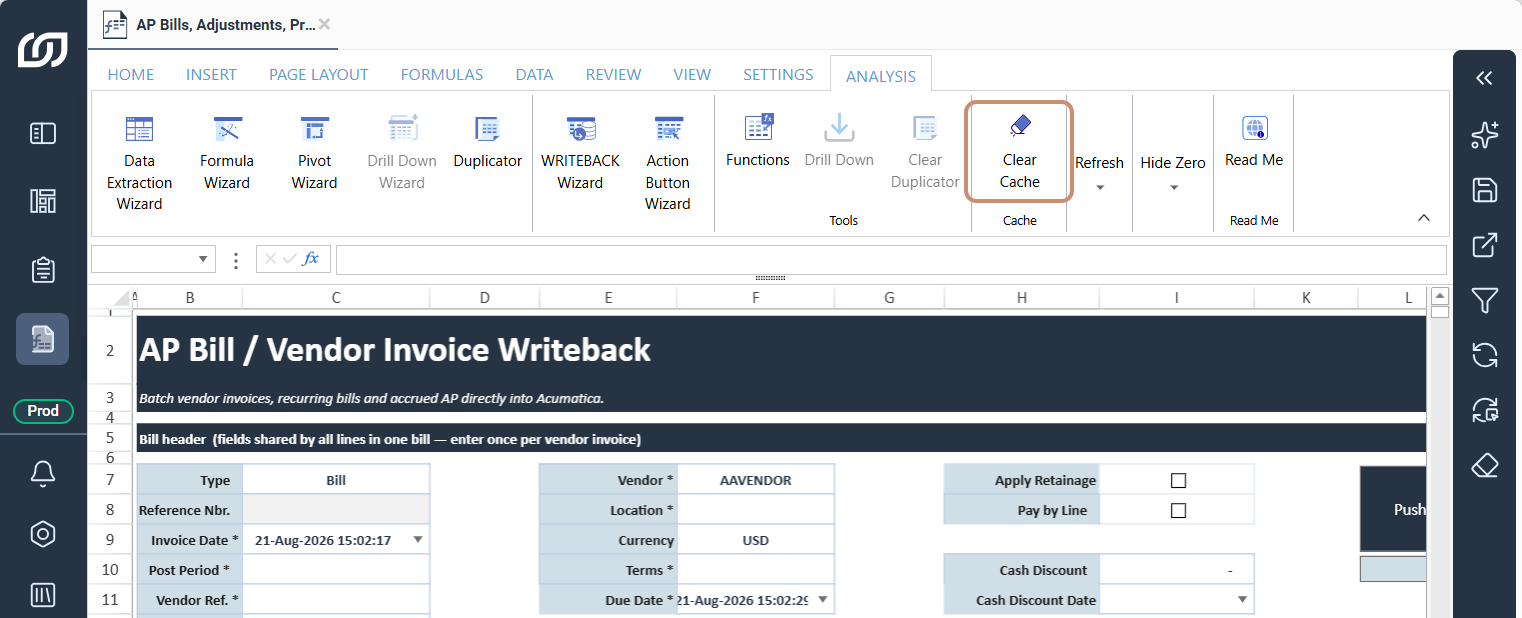
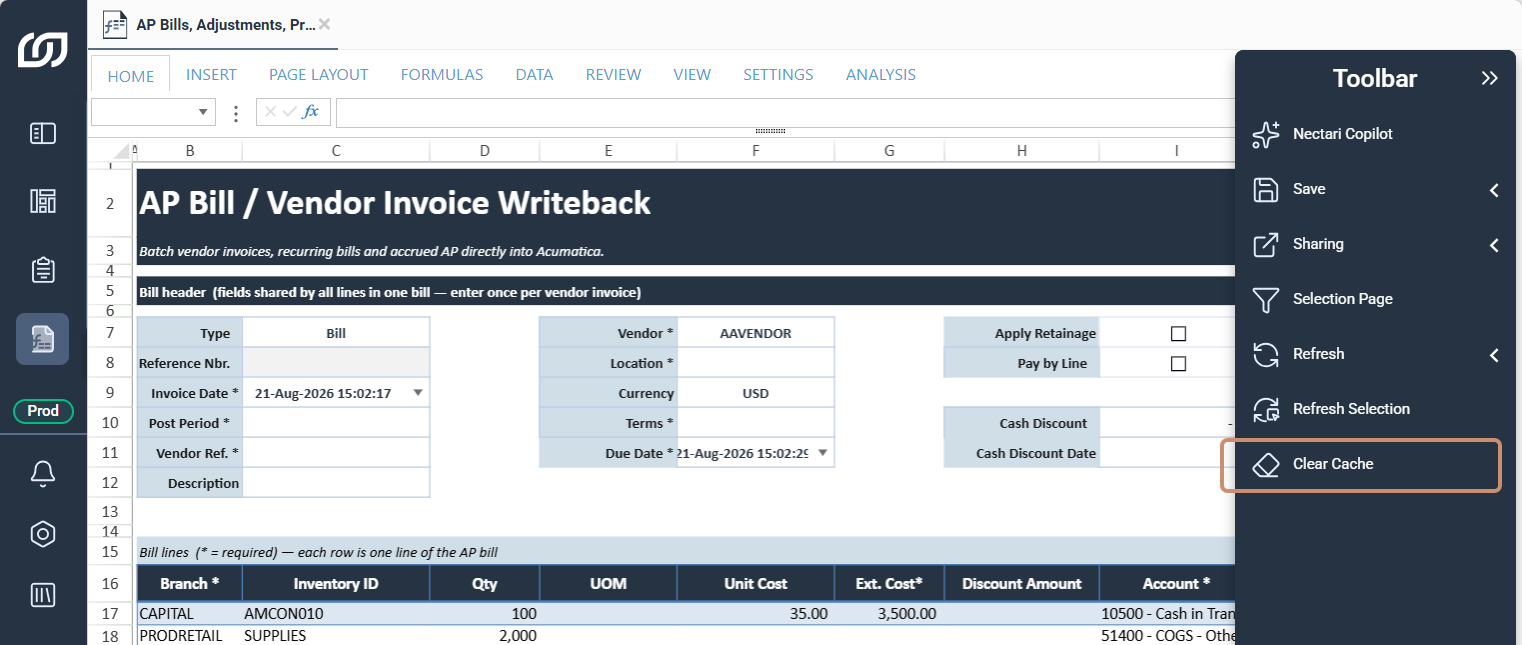
If the cache cannot be cleared or formulas remain stuck, refreshing the browser resets the system. Save beforehand, since unsaved changes are lost and all caches are deleted when the browser refreshes.
Refresh formulas after clearing the cache
Clearing the cache does not automatically refresh formulas, so results can still show their previous values until refreshed. On the Analysis tab, select Formulas and click the Refresh button to recalculate every formula in the current workbook.

Unlike clearing the cache, which applies to every open workbook, refreshing only recalculates the workbook currently in view. Other open workbooks need to be refreshed separately to reflect the cleared cache.